What do the Human Language Series, an esteemed linguistics instructional series, and Skärgårdsdoktorn, a popular Swedish medical drama have in common? They are both protected and shared through the Digital Content Library (DCL) at http://dcl.umn.edu/.
The DCL is a combined resource of the College of Liberal Arts (CLA) and the College of Design (CDes). It offers media in multiple forms, including video. This digital video is password protected and available only to U of M students, faculty and staff.
The video available through the DCL is of average quality, equivalent to clips on YouTube. It may not be the best choice for showing a full-length film in class, but it's an excellent resource for sharing shorter clips in class, or allowing students to watch entire films at home.
By request, almost any item in the Language Center video library can be digitized for instructional purposes. Currently, over 125 films in the Language Center film library have been digitized, some in their entirety, and some only select clips. You can search for films on our website at http://filemaker.cla.umn.edu/LangCtr/findrecords.php. If the film is available through the DCL, there will be a link at the bottom of the item detail page.
As a bonus, the DCL has given us DVD copies of VHS tapes that have been digitized. As part of the digitizing process for tapes, the DCL must make a DVD first. We have been given permission to circulate these DVD copies, and many VHS tapes have been archived and replaced with DVDs in our library. The DVDs are of no better quality than their VHS originals, and they lack standard DVD menus, although they do have chapters set approximately every ten minutes. When these DVD copies have been put into circulation, the original VHS tape is no longer available for check out.
Circulating these burned DVDs is a good option for films that are not commercially available in the United States. However, whenever possible, we strongly recommend that instructors purchase films on DVD instead of relying on a DVD copy of a VHS tape. The quality of a purchased DVD is far superior to a copy of a tape, and purchasing the standard format when available (currently DVD) will help us stay within the spirit of copyright protection.
If you have never visited the DCL, you should definitely check it out at http://dcl.umn.edu/. You'll be amazed at the wealth of materials available for you and your students.

Monday, April 5, 2010
Thursday, February 4, 2010
Spring 2010 iTeach Workshops
The Language Center is pleased to announce the Spring 2010 iTeach Workshops. For more information about these topics, please see the iTeach Workshop Wiki.
Camtasia Relay: Capture your Screen and Share with Students
Thursday, February 18; 12:20 - 1:10 pm, Jones 30
Camtasia Relay is a tool that allows you to make videos of your computer screen that you can share with your students online. This tool is particularly useful if you want to narrate a lecture and show other computer applications to your students. It's also a good way to quickly create online tutorials to demonstrate how to use technology tools for your class. In this hands-on session, you'll practice narrating and capturing your computer screen, uploading the file to MediaMill* and sharing the link with others.
Presenter: Alyssa Ruesch, CLA Language Center
*This session will be most useful to you if you already have a MediaMill account. To request an account, email mmhelp@cla.umn.edu
Student-Created Videos for Communication and Reflection
Wednesday, February 24; 1:15 - 2:15 pm, Jones 35
In this panel presentation, instructors will share different ways that video can be used to reach second-language learning objectives. We'll learn how students can take the reins recording and producing video as a way to practice their speaking or learn more about the target culture. We'll also see how Tokbox, an online video messaging system, can be used to facilitate class-to-class exchanges. Finally, we'll learn more about how instructors and students alike can use VideoAnt for feedback and reflection.
Presenters: David Atterberry, ESL; Kate Clements, ESL; Scott Spicer, SMART Learning Commons; Pablo Viedma, Spanish; and Sondes Woolridge, French
Making Media Handy: Using the iPod Touch in Language and Culture Courses
Wednesday, March 10; 1:25 - 2:15 pm, Jones 35
Smartphones and other mobile devices put a wealth of information in a variety of formats at our fingertips. How can these devices be used to advance the goals of language teachers and learners? Come find out how students in advanced German courses have used iPod touches to strengthen their linguistic, cultural, and digital competencies.
Presenters: Beth Kautz, GSD and CLA Language Center and Rebecca Raham, German
Collaboration through Google Docs
Monday, March 29; 1:25 - 2:15 pm, Jones 15
Soon, all U of M students will have Gmail accounts and access to the collaborative tools in Google Docs. What makes Google Docs different from other Web 2.0 options such as wikis, discussion boards, or blogs? The presenters will provide an overview of how the tools work and share examples of student use of the tools in language and culture courses.
Presenters: Beth Kautz, GSD and CLA Language Center and Rebecca Raham, German
Using Voicethread in the Second Language Classroom
Wednesday, April 7, 1:25 - 2:15 pm, Jones 35
In this panel presentation, instructors from the Minnesota English Language Program and the Department of French and Italian will share different ways the online tool, Voicethread, can be used in the classroom as a way to practice writing and speaking skills, as well as provide an interesting way to interact with new vocabulary.
Presenters: Sondes Woolridge, French; Annie Marrin, ESL; Becky Uran-Markman, ESL; and Antonia Krueger, ESL
Instructor Examples of Using Authentic Audio and Video in the Second Language Classroom
Thursday, April 15; 12:20 - 1:10 pm, Jones 35.
With the Internet, DVDs, and Satellite TV, there are many ways to bring authentic audio and video sources into the classroom. The question is, how can you effectively integrate these materials into your (beginning, intermediate, advanced) language classes? In this panel presentation, language instructors from the U of M share their tried and true ideas, lesson plans, and experiences from using authentic video in their courses.
Presenters: Arlys Arnold, ESL; Ginny Steinhagen, German; Vlad Dima, French; and Ling Wang, Chinese
Camtasia Relay: Capture your Screen and Share with Students
Thursday, February 18; 12:20 - 1:10 pm, Jones 30
Camtasia Relay is a tool that allows you to make videos of your computer screen that you can share with your students online. This tool is particularly useful if you want to narrate a lecture and show other computer applications to your students. It's also a good way to quickly create online tutorials to demonstrate how to use technology tools for your class. In this hands-on session, you'll practice narrating and capturing your computer screen, uploading the file to MediaMill* and sharing the link with others.
Presenter: Alyssa Ruesch, CLA Language Center
*This session will be most useful to you if you already have a MediaMill account. To request an account, email mmhelp@cla.umn.edu
Student-Created Videos for Communication and Reflection
Wednesday, February 24; 1:15 - 2:15 pm, Jones 35
In this panel presentation, instructors will share different ways that video can be used to reach second-language learning objectives. We'll learn how students can take the reins recording and producing video as a way to practice their speaking or learn more about the target culture. We'll also see how Tokbox, an online video messaging system, can be used to facilitate class-to-class exchanges. Finally, we'll learn more about how instructors and students alike can use VideoAnt for feedback and reflection.
Presenters: David Atterberry, ESL; Kate Clements, ESL; Scott Spicer, SMART Learning Commons; Pablo Viedma, Spanish; and Sondes Woolridge, French
Making Media Handy: Using the iPod Touch in Language and Culture Courses
Wednesday, March 10; 1:25 - 2:15 pm, Jones 35
Smartphones and other mobile devices put a wealth of information in a variety of formats at our fingertips. How can these devices be used to advance the goals of language teachers and learners? Come find out how students in advanced German courses have used iPod touches to strengthen their linguistic, cultural, and digital competencies.
Presenters: Beth Kautz, GSD and CLA Language Center and Rebecca Raham, German
Collaboration through Google Docs
Monday, March 29; 1:25 - 2:15 pm, Jones 15
Soon, all U of M students will have Gmail accounts and access to the collaborative tools in Google Docs. What makes Google Docs different from other Web 2.0 options such as wikis, discussion boards, or blogs? The presenters will provide an overview of how the tools work and share examples of student use of the tools in language and culture courses.
Presenters: Beth Kautz, GSD and CLA Language Center and Rebecca Raham, German
Using Voicethread in the Second Language Classroom
Wednesday, April 7, 1:25 - 2:15 pm, Jones 35
In this panel presentation, instructors from the Minnesota English Language Program and the Department of French and Italian will share different ways the online tool, Voicethread, can be used in the classroom as a way to practice writing and speaking skills, as well as provide an interesting way to interact with new vocabulary.
Presenters: Sondes Woolridge, French; Annie Marrin, ESL; Becky Uran-Markman, ESL; and Antonia Krueger, ESL
Instructor Examples of Using Authentic Audio and Video in the Second Language Classroom
Thursday, April 15; 12:20 - 1:10 pm, Jones 35.
With the Internet, DVDs, and Satellite TV, there are many ways to bring authentic audio and video sources into the classroom. The question is, how can you effectively integrate these materials into your (beginning, intermediate, advanced) language classes? In this panel presentation, language instructors from the U of M share their tried and true ideas, lesson plans, and experiences from using authentic video in their courses.
Presenters: Arlys Arnold, ESL; Ginny Steinhagen, German; Vlad Dima, French; and Ling Wang, Chinese
Wednesday, January 27, 2010
Mac DiLL FAQs
Do you have a question about using the Mac DiLL? Skim below to see if you we've already answered it. If you don't see your question, please leave it in the comments section. We'll add it to this list right away!
If you'd like training on how to use the Mac DiLL, please make a reservation in one of the classrooms and indicate that you want training. Or, you can contact Alyssa Ruesch for help.
FAQ 1 - Recording student voices
Question: How do students record their voices on the Mac DiLL?
Answer: In order for your students to record their voices, they must first be assigned a "New Task" (choose "without a lesson, recording-only" or "with a lesson from the catalog"). For more information on how to assign tasks, see pages 9 - 12 in the Mac DiLL Teacher's Guide.
FAQ 2 - Recording pairs or groups of students
Question: If I pair my students, will the Mac DiLL record both of their voices or just one?
Answer: When you pair students and give them a recording task, the Mac DiLL will record both of the student voices. It is usually better to ask both students in the pair to record - better safe than sorry! In test situations, some students get nervous and forget to hit the record button. If both students are asked to record the conversation, then there will always be a back-up.
FAQ 3 - Repeat after me!
Question: I want all of my students to repeat after me and record their voice. How do I do this?
Answer: You'll need to do a Synchronized Activity. Be sure to enable the external microphone so that your students can hear your voice. Then, hit the record button while your students respond. For information on how to set-up a Synchronized Activity, see the Mac DiLL Teacher's guide, page 13.
*Hint - If you are asking your students a series of questions, you may want to start and stop the record button for each question. This will create a new track for each answer and help to make grading a snap. Instead of fast forwarding to the responses, you can go directly to the specific question you want to grade.
FAQ 4 - Saving student recordings
Question: How do students save their recordings?
Answer: This is the beauty of the Mac DiLL! Students don't have to do anything to save their recordings! When you assign a recording-activity, just be sure that the "Save student recordings" option is checked (it is by default). For more information, see the Mac DiLL Teachers' Guide, pages 9 - 12.
FAQ 5 - Accessing student recordings
Question: How do instructors access student recordings?
Answer: It's easy as pie! Just go to the Language Center's Mac DiLL server and log-in with your x500 and password. Voila! All your students' recordings are available for your listening pleasure.
For more information on how to download the files as Mp3s, see FAQ 6, or our blog post on Sharing Mac DiLL audio recordings with students.
FAQ 6 - Downloading student audio files
Question: Is there a way to download the student audio files from the instructor log-in page? For instance, I'd like to have the mp3 files burned to a CD or put on an mp3 player so I don't have to be tethered to my computer while I grade.
Answer: Yes! You can download the student audio files as mp3 files by following these steps:
You now have a folder containing all of your students' mp3 files. You can save these files to your hard-drive, copy them to a CD or put them on an mp3 player. The choice is all yours!
FAQ 7 - Student access to audio files outside of class
Question: Can students listen to the audio files they created during class when they get home?
Answer: The short answer to this question is no, students are not able to listen to their files directly from the Mac DiLL server. If students want to listen to in-class recordings outside of class, you will need to download the files (see FAQ 6, above) and send the mp3s to the student. For instructions on how to do this pretty easily in any of the Jones Classrooms, see our blog post Sharing Mac DiLL audio recordings with students.
FAQ 8 - Sharing files with other instructors
Question: I'm subbing for another instructor and need to get the audio files to him so that he can grade them. How can I share the audio files with the other instructor?
Answer: First, whatever you do, DO NOT give the other instructor your x500 and password so they can access the files. Bad idea!! Instead, follow the steps outlined in FAQ 6 and insert the other instructor's email address in the email field. This will send the download link to the other instructor. The other instructor can not get into your account, but they can download the files from the link you sent them after Archiving the Tasks. Remember to keep student privacy policies in mind whenever you share files with another instructor.
If you'd like training on how to use the Mac DiLL, please make a reservation in one of the classrooms and indicate that you want training. Or, you can contact Alyssa Ruesch for help.
FAQ 1 - Recording student voices
Question: How do students record their voices on the Mac DiLL?
Answer: In order for your students to record their voices, they must first be assigned a "New Task" (choose "without a lesson, recording-only" or "with a lesson from the catalog"). For more information on how to assign tasks, see pages 9 - 12 in the Mac DiLL Teacher's Guide.
FAQ 2 - Recording pairs or groups of students
Question: If I pair my students, will the Mac DiLL record both of their voices or just one?
Answer: When you pair students and give them a recording task, the Mac DiLL will record both of the student voices. It is usually better to ask both students in the pair to record - better safe than sorry! In test situations, some students get nervous and forget to hit the record button. If both students are asked to record the conversation, then there will always be a back-up.
FAQ 3 - Repeat after me!
Question: I want all of my students to repeat after me and record their voice. How do I do this?
Answer: You'll need to do a Synchronized Activity. Be sure to enable the external microphone so that your students can hear your voice. Then, hit the record button while your students respond. For information on how to set-up a Synchronized Activity, see the Mac DiLL Teacher's guide, page 13.
*Hint - If you are asking your students a series of questions, you may want to start and stop the record button for each question. This will create a new track for each answer and help to make grading a snap. Instead of fast forwarding to the responses, you can go directly to the specific question you want to grade.
FAQ 4 - Saving student recordings
Question: How do students save their recordings?
Answer: This is the beauty of the Mac DiLL! Students don't have to do anything to save their recordings! When you assign a recording-activity, just be sure that the "Save student recordings" option is checked (it is by default). For more information, see the Mac DiLL Teachers' Guide, pages 9 - 12.
FAQ 5 - Accessing student recordings
Question: How do instructors access student recordings?
Answer: It's easy as pie! Just go to the Language Center's Mac DiLL server and log-in with your x500 and password. Voila! All your students' recordings are available for your listening pleasure.
For more information on how to download the files as Mp3s, see FAQ 6, or our blog post on Sharing Mac DiLL audio recordings with students.
FAQ 6 - Downloading student audio files
Question: Is there a way to download the student audio files from the instructor log-in page? For instance, I'd like to have the mp3 files burned to a CD or put on an mp3 player so I don't have to be tethered to my computer while I grade.
Answer: Yes! You can download the student audio files as mp3 files by following these steps:
1. Login to the Language Center's Mac DiLL server at:
http://lcdill.cla.umn.edu
2. Locate the recordings you would like to save as mp3s.
3. Click on "Archive Task to ZIP File". This will create a ZIP file that includes all of your students' mp3 files, labeled by students name or x500. You will access this ZIP file via a web link.
a. Select a name for the files from the pulldown menu (shortname = x500)4. Click on the web link to download the ZIP file.
b. Provide a description of the activity. This will be the name of the folder containing all of the mp3 files.
c. Provide an email address where the link to the ZIP file will be sent.
5. Unzip the file.
You now have a folder containing all of your students' mp3 files. You can save these files to your hard-drive, copy them to a CD or put them on an mp3 player. The choice is all yours!
FAQ 7 - Student access to audio files outside of class
Question: Can students listen to the audio files they created during class when they get home?
Answer: The short answer to this question is no, students are not able to listen to their files directly from the Mac DiLL server. If students want to listen to in-class recordings outside of class, you will need to download the files (see FAQ 6, above) and send the mp3s to the student. For instructions on how to do this pretty easily in any of the Jones Classrooms, see our blog post Sharing Mac DiLL audio recordings with students.
FAQ 8 - Sharing files with other instructors
Question: I'm subbing for another instructor and need to get the audio files to him so that he can grade them. How can I share the audio files with the other instructor?
Answer: First, whatever you do, DO NOT give the other instructor your x500 and password so they can access the files. Bad idea!! Instead, follow the steps outlined in FAQ 6 and insert the other instructor's email address in the email field. This will send the download link to the other instructor. The other instructor can not get into your account, but they can download the files from the link you sent them after Archiving the Tasks. Remember to keep student privacy policies in mind whenever you share files with another instructor.
Monday, November 23, 2009
Sharing Mac DiLL audio recordings with students
Instructors often ask us, "How can students access the files recorded using the Mac DiLL?" Unfortunately, there isn't a way for students to log-in to the Mac DiLL server and access their recordings. But, with a few simple steps, instructors can download student recordings using the Archive Task to ZIP File function on the Mac DiLL server website, copy the files to the LC_Server drive on the Macs in the classrooms, and then let students save their files to their own flash drives or to their Netfiles accounts.
First log-in to the DiLL website at https://lcdill.cla.umn.edu/ and find the recordings you'd like to share under Recording-Only Activities or Synchronized Activities.
Click on Archive Task to ZIP, at the top of the screen.
Then, name your file using one of the options from the pull-down menu (shortname.mp3, last name.mp3, etc). This names each .mp3 file according to each student log-in name.
Type in a name for the Activity so that it is easier to find it after it downloads.
Type in your email address in the email field; a link to the zip file will be sent to your email address.
Click Create ZIP Archive.
Wait for the files to process. A weblink will appear with a ZIP file containing all of your students' recordings.
Click on this link to download the files to your computer. In the Mac classrooms, the ZIP file will automatically download to the Local_Save drive.
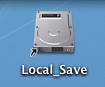
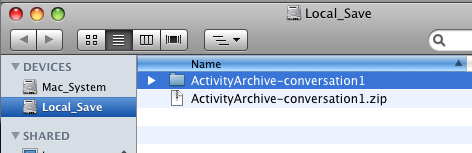
Open the Local_Save drive and double click on the ZIP file to unzip the files. A new folder will appear with all of your students' .mp3 files.
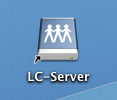
Copy this folder to the LC_Server drive.
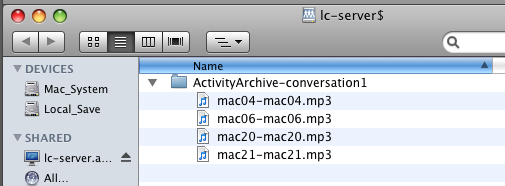
Your students can copy their individual recordings to a flash drive or to their Netfiles accounts. Keep in mind that with this process, any student could listen to another student's recording. So, if privacy is a concern, you'll want to avoid using the LC_Server as a means for sharing because it is viewable from all computers in the Language Center. Instead, you could email files to individual students, or use Netfiles to securely share student audio recordings.
First log-in to the DiLL website at https://lcdill.cla.umn.edu/ and find the recordings you'd like to share under Recording-Only Activities or Synchronized Activities.
Click on Archive Task to ZIP, at the top of the screen.
Then, name your file using one of the options from the pull-down menu (shortname.mp3, last name.mp3, etc). This names each .mp3 file according to each student log-in name.
Type in a name for the Activity so that it is easier to find it after it downloads.
Type in your email address in the email field; a link to the zip file will be sent to your email address.
Click Create ZIP Archive.
Wait for the files to process. A weblink will appear with a ZIP file containing all of your students' recordings.
Click on this link to download the files to your computer. In the Mac classrooms, the ZIP file will automatically download to the Local_Save drive.
Open the Local_Save drive and double click on the ZIP file to unzip the files. A new folder will appear with all of your students' .mp3 files.
Copy this folder to the LC_Server drive.
Your students can copy their individual recordings to a flash drive or to their Netfiles accounts. Keep in mind that with this process, any student could listen to another student's recording. So, if privacy is a concern, you'll want to avoid using the LC_Server as a means for sharing because it is viewable from all computers in the Language Center. Instead, you could email files to individual students, or use Netfiles to securely share student audio recordings.
Tuesday, November 3, 2009
Computer Dialogue
Halloween always reminds me of Edward Kuhlka, our former office specialist who decorated Jones Hall so gothically in October. Edward is now working as an Administrative Project Manager at an architecture firm in Seattle. Here's an Elsie's Backside style submission he forwarded to us.
COMPUTER: Monitor, display this document, ok?
MONITOR: No prob, boss.
COMPUTER: OK, now it looks like Mouse is moving around...so, Monitor, will you move the pointer icon accordingly?
MONITOR: Anything you ask, boss.
COMPUTER: Great, great. OK, Mouse, where are you going now?
MOUSE: Over to the icon panel, sir.
COMPUTER: Hmm, Let me know if he clicks anything, OK?
MOUSE: Of course.
KEYBOARD: Sir, he's pressed control and P simultaneously.
MONITOR: Oh God, here we go.
COMPUTER: *sighs* Printer, are you there?
PRINTER: No.
COMPUTER: Please, Printer. I know you're there.
PRINTER: NO! I'm not here! Leave me alone!
COMPUTER: Jeez. OK look, you really need...
MOUSE: Sir, he's clicked on the printer icon.
COMPUTER: Printer, now you have to print it twice.
PRINTER: NO! NO! NO! I don't want to! I hate you! I hate printing! I'm turning off!
COMPUTER: Printer, you know you can't turn yourself off. Just print the document twice and we'll leave you alone.
PRINTER: NO! That's what you always say! I hate you! I'm out of ink!
COMPUTER: You're not out of in...
PRINTER: I'M OUT OF INK!
COMPUTER: *Sighs* Monitor, please show a low ink level alert.
MONITOR: But sir, he has plen...
COMPUTER: Just do it, damn it!
MONITOR: Yes, sir.
KEYBOARD: AHHH! He's hitting me!
COMPUTER: Stay calm, he'll stop soon. Stay calm, old friend.
KEYBOARD: He's pressing everything. Oh god, I don't know, he's just pressing everything!
COMPUTER: PRINTER! Are you happy now?! Do you see what you've done?!
PRINTER: HA! that's what you get for trying to get me to do work. Next time he...hey...HEY! He's trying to open me! HELP! HELP! Oh my god! He's torn out my cartridge! HELP! Please! ERROR!
MONITOR: Sir, maybe we should help him?
COMPUTER: No. He did this to himself.
COMPUTER: Monitor, display this document, ok?
MONITOR: No prob, boss.
COMPUTER: OK, now it looks like Mouse is moving around...so, Monitor, will you move the pointer icon accordingly?
MONITOR: Anything you ask, boss.
COMPUTER: Great, great. OK, Mouse, where are you going now?
MOUSE: Over to the icon panel, sir.
COMPUTER: Hmm, Let me know if he clicks anything, OK?
MOUSE: Of course.
KEYBOARD: Sir, he's pressed control and P simultaneously.
MONITOR: Oh God, here we go.
COMPUTER: *sighs* Printer, are you there?
PRINTER: No.
COMPUTER: Please, Printer. I know you're there.
PRINTER: NO! I'm not here! Leave me alone!
COMPUTER: Jeez. OK look, you really need...
MOUSE: Sir, he's clicked on the printer icon.
COMPUTER: Printer, now you have to print it twice.
PRINTER: NO! NO! NO! I don't want to! I hate you! I hate printing! I'm turning off!
COMPUTER: Printer, you know you can't turn yourself off. Just print the document twice and we'll leave you alone.
PRINTER: NO! That's what you always say! I hate you! I'm out of ink!
COMPUTER: You're not out of in...
PRINTER: I'M OUT OF INK!
COMPUTER: *Sighs* Monitor, please show a low ink level alert.
MONITOR: But sir, he has plen...
COMPUTER: Just do it, damn it!
MONITOR: Yes, sir.
KEYBOARD: AHHH! He's hitting me!
COMPUTER: Stay calm, he'll stop soon. Stay calm, old friend.
KEYBOARD: He's pressing everything. Oh god, I don't know, he's just pressing everything!
COMPUTER: PRINTER! Are you happy now?! Do you see what you've done?!
PRINTER: HA! that's what you get for trying to get me to do work. Next time he...hey...HEY! He's trying to open me! HELP! HELP! Oh my god! He's torn out my cartridge! HELP! Please! ERROR!
MONITOR: Sir, maybe we should help him?
COMPUTER: No. He did this to himself.
Subscribe to:
Posts (Atom)