Instructors who wish to access student recordings made in the Mac DiLL classrooms from an off-campus computer need to first connect to the University network through a Virtual Private Network (VPN). We've recently learned that connecting to the DiLL will only work if you choose UofMvpn or Full Tunnel options when connecting. Do not choose the Split Tunnel option. Please contact the Language Center Technical Coordinator, Diane Rackowski, at dianer@umn.edu if you need more information about connecting to the Mac DiLL server from off-campus.

Showing posts with label Mac DiLL. Show all posts
Showing posts with label Mac DiLL. Show all posts
Monday, February 24, 2014
Tuesday, July 9, 2013
Easier Alternatives to Oral Interviews
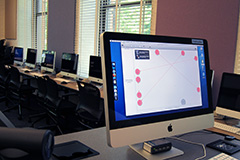 Formal and informal assessment of students' spoken language is used by most language departments, commonly as one-on-one interviews with the instructor. This can put a huge strain on instructors as they are responsible for not only proctoring and grading each interview, but also: coordinating interviews with each student (which usually takes up several class dates), finding equipment to record the interviews, and figuring out how to access the recordings. Fortunately, the Language Center computer classrooms offer a variety of alternatives to one-on-one oral skills assessment!
All four of the LC classrooms can be used as a Digital Language Lab (DiLL). The DiLL uses an intuitive software interface that allows you to carry out the activities of a traditional language lab. You may already be familiar with the DiLL for informal speaking activities in class, but a growing number of language departments (Spanish, Chinese, ESL) are using the DiLL for graded speaking tasks.
The DiLL allows you to pair students (one-on-one or even small groups) and then, with the press of a button, they can record their conversations! You will have easy access to student recordings which are saved automatically to the DiLL server. Recordings can be played online or downloaded for easy access anywhere. What normally took days of class time will require less than one class period.
In my own experience, I have found that pairing students, rather than interviewing each student myself, produced more natural language and students felt less nervous, because they were working with their classmates and not their instructor. However, if you prefer to assign assessments that are individual, especially if you are focusing on accuracy, the DiLL is capable of this as well.
The DiLL also allows you to simply record students individually by giving them a prompt in advance or you can speak with the whole class (via the DiLL) and record their responses. You can even use a pre-recorded prompt, which allows students to listen, pause and record. Students can have multiple attempts, if the goal is accuracy. And again, each student's individual recordings will be available for you online immediately after they are submitted.
The DiLL is a great way to easily collect speaking samples from all of your students in the amount of time that you might normally spend interviewing one student. Their recordings are available immediately and can easily be accessed for grading, or even downloaded to share with the student. If you would like to learn more about how the Language Center classrooms can be used for oral assessment or if you would like to schedule a one-on-one training on how to use the DiLL, please contact us.
Have you used the DiLL for oral assessment? What was your experience like?
Tuesday, September 4, 2012
Jones Hall Computer Classrooms - Now on Google Cal
Beginning Fall 2012, Google Cal is the system used to manage all Language Center reservable spaces, including the four classrooms: Jones 10, 15, 30 and 35.
You can view the calendar online at our website. The web view only recently became accessible, and we have found that Firefox and Safari are good browsers for accessing the calendar. Here are some highlights of the move to Google Cal:
We now have four DiLL classrooms available for Fall reservation. Here is a reminder of classroom size for each:
Learn more about the renovated Jones 35 at Elsie Speaks, or stop by this week for a tour.
You can view the calendar online at our website. The web view only recently became accessible, and we have found that Firefox and Safari are good browsers for accessing the calendar. Here are some highlights of the move to Google Cal:
- Classrooms are reserved via the Language Center online request form, not directly into Google. The online request form can be used to reserve all Language Center resources, including small rooms, media and equipment.
- Language instructors and other individuals who schedule rooms will be "invited" to the reservation so that it shows up on their calendar. This will make it easier for instructors to remember when their class meets in a Jones classroom.
- When classrooms are scheduled by a level coordinator, and the instructor is TBA, no instructors will be invited. Instructors will be added at a later date, once the teaching schedule is posted on Onestop.
- When a reservation is confirmed, instructors and other individuals who reserve rooms will receive an attached agenda with all upcoming dates at a glance. The agenda will also be available through Google Docs, and will be updated if changes occur later in the semester.
- Confirmations will be sent from a new email account, lc-staff@umn.edu.The primary departmental account remains elsie@umn.edu.
- Media and equipment reservations are still managed through FileMaker Pro, not Google Cal.
We now have four DiLL classrooms available for Fall reservation. Here is a reminder of classroom size for each:
- Jones 10 = 30 computers
- Jones 15 = 28 computers
- Jones 30 = 29 computers
- Jones 35 = 24 computers
Learn more about the renovated Jones 35 at Elsie Speaks, or stop by this week for a tour.
Monday, February 20, 2012
Jones 35 Renovation: More Flexibility, More DiLL, No Laptop Fuss
The Language Center staff would like thank all instructors who participated in the recent survey of technology needs. An upgrade planning committee used the results of that survey, along with an examination of our classroom usage statistics, to develop a plan for the renovation of Jones 35. Both the survey and an analysis of our use indicate that the number one technology need is additional classroom space for student audio pairing and recording. Since the MacDiLL software used for most computer-based audio activities only runs on Mac computers, we are planing on replacing the Windows OS laptops with networked, desktop Macs. The layout of the renovated classroom will be more flexible than our existing MacDiLL classrooms, and the room will remain multifunctional.
We are planning to install 24 networked iMac computers around the perimeter of the classroom. The interior of the classroom will be outfitted with tables that can be easily moved to allow for a variety of classroom configurations. Chairs will serve both the perimeter computer workstations as well as the interior tables, leaving enough space for many configurations. This flexible layout will allow the room to be used as both a computer classroom, and as a space for presentations, lectures, and small group work that does not involve computers.
The room will retain videotaping capabilities, and we are investigating options for upgrading the recording equipment.
Our survey indicated that most instructors prefer Macs for classroom use, and a large percentage have no preference. While a smaller percentage of instructors stated a preference for Windows computers, the committee is aware that some instructors have a strong preference for the Windows platform, and we would like to provide the best accommodation possible. All of our Mac classroom computers can fully run the Windows operating system, and the survey results indicated that not all instructors were aware of this possibility. Please contact us if you would like more information on how Windows can run on our iMac computers, or if you have suggestions on what we might do to improve your students' experiences on a dual-booting computer.
We are very excited about this renovation, and look forward to unveiling a brand-new, multifunctional computer lab with lots of layout possibilities, and no laptop fuss, during summer 2012.
We are planning to install 24 networked iMac computers around the perimeter of the classroom. The interior of the classroom will be outfitted with tables that can be easily moved to allow for a variety of classroom configurations. Chairs will serve both the perimeter computer workstations as well as the interior tables, leaving enough space for many configurations. This flexible layout will allow the room to be used as both a computer classroom, and as a space for presentations, lectures, and small group work that does not involve computers.
The room will retain videotaping capabilities, and we are investigating options for upgrading the recording equipment.
Our survey indicated that most instructors prefer Macs for classroom use, and a large percentage have no preference. While a smaller percentage of instructors stated a preference for Windows computers, the committee is aware that some instructors have a strong preference for the Windows platform, and we would like to provide the best accommodation possible. All of our Mac classroom computers can fully run the Windows operating system, and the survey results indicated that not all instructors were aware of this possibility. Please contact us if you would like more information on how Windows can run on our iMac computers, or if you have suggestions on what we might do to improve your students' experiences on a dual-booting computer.
We are very excited about this renovation, and look forward to unveiling a brand-new, multifunctional computer lab with lots of layout possibilities, and no laptop fuss, during summer 2012.
Tuesday, July 5, 2011
Fall 2011 Reservations, Classroom Renovations
The Language Center will begin entering Fall semester reservations on Friday, July 15. You may submit reservation requests before that date, and they will be held until July 15. To have the best possibility of receiving the rooms and equipment you need, please submit by 9:00 AM on that day.
We are pleased to announce that beginning Fall semester, we will offer three digital language lab classrooms with an open layout that will accommodate a minimum of 28 students. Over the summer, Jones 10 is being completely renovated and Jones 30 is being partially renovated to add additional student stations. Jones 15 was renovated last summer.
The total number of student computers available effective Fall 2011 are:
Here is some additional information about requesting rooms:
See http://languagecenter.cla.umn.edu/in_reservations.html for details on policy, and to make an online reservation request.
We are pleased to announce that beginning Fall semester, we will offer three digital language lab classrooms with an open layout that will accommodate a minimum of 28 students. Over the summer, Jones 10 is being completely renovated and Jones 30 is being partially renovated to add additional student stations. Jones 15 was renovated last summer.
The total number of student computers available effective Fall 2011 are:
- Jones 10: 30 stations
- Jones 15: 28 stations
- Jones 30: 29 stations
- Jones 35: 24 laptop computers (we may be able to add additional checkout computers upon request)
Here is some additional information about requesting rooms:
- Advance reservations always require a reservation form.
- Please submit a form for each class section.
- Each class is allowed to reserve up to 20 hours in Jones Hall classrooms.
- Teachers of intensive courses may negotiate their needs.
- Reservations of other equipment and media are unlimited in terms of amount and frequency (within reason).
- Instructors must intend to use the technology they are reserving.
See http://languagecenter.cla.umn.edu/in_reservations.html for details on policy, and to make an online reservation request.
Wednesday, January 27, 2010
Mac DiLL FAQs
Do you have a question about using the Mac DiLL? Skim below to see if you we've already answered it. If you don't see your question, please leave it in the comments section. We'll add it to this list right away!
If you'd like training on how to use the Mac DiLL, please make a reservation in one of the classrooms and indicate that you want training. Or, you can contact Alyssa Ruesch for help.
FAQ 1 - Recording student voices
Question: How do students record their voices on the Mac DiLL?
Answer: In order for your students to record their voices, they must first be assigned a "New Task" (choose "without a lesson, recording-only" or "with a lesson from the catalog"). For more information on how to assign tasks, see pages 9 - 12 in the Mac DiLL Teacher's Guide.
FAQ 2 - Recording pairs or groups of students
Question: If I pair my students, will the Mac DiLL record both of their voices or just one?
Answer: When you pair students and give them a recording task, the Mac DiLL will record both of the student voices. It is usually better to ask both students in the pair to record - better safe than sorry! In test situations, some students get nervous and forget to hit the record button. If both students are asked to record the conversation, then there will always be a back-up.
FAQ 3 - Repeat after me!
Question: I want all of my students to repeat after me and record their voice. How do I do this?
Answer: You'll need to do a Synchronized Activity. Be sure to enable the external microphone so that your students can hear your voice. Then, hit the record button while your students respond. For information on how to set-up a Synchronized Activity, see the Mac DiLL Teacher's guide, page 13.
*Hint - If you are asking your students a series of questions, you may want to start and stop the record button for each question. This will create a new track for each answer and help to make grading a snap. Instead of fast forwarding to the responses, you can go directly to the specific question you want to grade.
FAQ 4 - Saving student recordings
Question: How do students save their recordings?
Answer: This is the beauty of the Mac DiLL! Students don't have to do anything to save their recordings! When you assign a recording-activity, just be sure that the "Save student recordings" option is checked (it is by default). For more information, see the Mac DiLL Teachers' Guide, pages 9 - 12.
FAQ 5 - Accessing student recordings
Question: How do instructors access student recordings?
Answer: It's easy as pie! Just go to the Language Center's Mac DiLL server and log-in with your x500 and password. Voila! All your students' recordings are available for your listening pleasure.
For more information on how to download the files as Mp3s, see FAQ 6, or our blog post on Sharing Mac DiLL audio recordings with students.
FAQ 6 - Downloading student audio files
Question: Is there a way to download the student audio files from the instructor log-in page? For instance, I'd like to have the mp3 files burned to a CD or put on an mp3 player so I don't have to be tethered to my computer while I grade.
Answer: Yes! You can download the student audio files as mp3 files by following these steps:
You now have a folder containing all of your students' mp3 files. You can save these files to your hard-drive, copy them to a CD or put them on an mp3 player. The choice is all yours!
FAQ 7 - Student access to audio files outside of class
Question: Can students listen to the audio files they created during class when they get home?
Answer: The short answer to this question is no, students are not able to listen to their files directly from the Mac DiLL server. If students want to listen to in-class recordings outside of class, you will need to download the files (see FAQ 6, above) and send the mp3s to the student. For instructions on how to do this pretty easily in any of the Jones Classrooms, see our blog post Sharing Mac DiLL audio recordings with students.
FAQ 8 - Sharing files with other instructors
Question: I'm subbing for another instructor and need to get the audio files to him so that he can grade them. How can I share the audio files with the other instructor?
Answer: First, whatever you do, DO NOT give the other instructor your x500 and password so they can access the files. Bad idea!! Instead, follow the steps outlined in FAQ 6 and insert the other instructor's email address in the email field. This will send the download link to the other instructor. The other instructor can not get into your account, but they can download the files from the link you sent them after Archiving the Tasks. Remember to keep student privacy policies in mind whenever you share files with another instructor.
If you'd like training on how to use the Mac DiLL, please make a reservation in one of the classrooms and indicate that you want training. Or, you can contact Alyssa Ruesch for help.
FAQ 1 - Recording student voices
Question: How do students record their voices on the Mac DiLL?
Answer: In order for your students to record their voices, they must first be assigned a "New Task" (choose "without a lesson, recording-only" or "with a lesson from the catalog"). For more information on how to assign tasks, see pages 9 - 12 in the Mac DiLL Teacher's Guide.
FAQ 2 - Recording pairs or groups of students
Question: If I pair my students, will the Mac DiLL record both of their voices or just one?
Answer: When you pair students and give them a recording task, the Mac DiLL will record both of the student voices. It is usually better to ask both students in the pair to record - better safe than sorry! In test situations, some students get nervous and forget to hit the record button. If both students are asked to record the conversation, then there will always be a back-up.
FAQ 3 - Repeat after me!
Question: I want all of my students to repeat after me and record their voice. How do I do this?
Answer: You'll need to do a Synchronized Activity. Be sure to enable the external microphone so that your students can hear your voice. Then, hit the record button while your students respond. For information on how to set-up a Synchronized Activity, see the Mac DiLL Teacher's guide, page 13.
*Hint - If you are asking your students a series of questions, you may want to start and stop the record button for each question. This will create a new track for each answer and help to make grading a snap. Instead of fast forwarding to the responses, you can go directly to the specific question you want to grade.
FAQ 4 - Saving student recordings
Question: How do students save their recordings?
Answer: This is the beauty of the Mac DiLL! Students don't have to do anything to save their recordings! When you assign a recording-activity, just be sure that the "Save student recordings" option is checked (it is by default). For more information, see the Mac DiLL Teachers' Guide, pages 9 - 12.
FAQ 5 - Accessing student recordings
Question: How do instructors access student recordings?
Answer: It's easy as pie! Just go to the Language Center's Mac DiLL server and log-in with your x500 and password. Voila! All your students' recordings are available for your listening pleasure.
For more information on how to download the files as Mp3s, see FAQ 6, or our blog post on Sharing Mac DiLL audio recordings with students.
FAQ 6 - Downloading student audio files
Question: Is there a way to download the student audio files from the instructor log-in page? For instance, I'd like to have the mp3 files burned to a CD or put on an mp3 player so I don't have to be tethered to my computer while I grade.
Answer: Yes! You can download the student audio files as mp3 files by following these steps:
1. Login to the Language Center's Mac DiLL server at:
http://lcdill.cla.umn.edu
2. Locate the recordings you would like to save as mp3s.
3. Click on "Archive Task to ZIP File". This will create a ZIP file that includes all of your students' mp3 files, labeled by students name or x500. You will access this ZIP file via a web link.
a. Select a name for the files from the pulldown menu (shortname = x500)4. Click on the web link to download the ZIP file.
b. Provide a description of the activity. This will be the name of the folder containing all of the mp3 files.
c. Provide an email address where the link to the ZIP file will be sent.
5. Unzip the file.
You now have a folder containing all of your students' mp3 files. You can save these files to your hard-drive, copy them to a CD or put them on an mp3 player. The choice is all yours!
FAQ 7 - Student access to audio files outside of class
Question: Can students listen to the audio files they created during class when they get home?
Answer: The short answer to this question is no, students are not able to listen to their files directly from the Mac DiLL server. If students want to listen to in-class recordings outside of class, you will need to download the files (see FAQ 6, above) and send the mp3s to the student. For instructions on how to do this pretty easily in any of the Jones Classrooms, see our blog post Sharing Mac DiLL audio recordings with students.
FAQ 8 - Sharing files with other instructors
Question: I'm subbing for another instructor and need to get the audio files to him so that he can grade them. How can I share the audio files with the other instructor?
Answer: First, whatever you do, DO NOT give the other instructor your x500 and password so they can access the files. Bad idea!! Instead, follow the steps outlined in FAQ 6 and insert the other instructor's email address in the email field. This will send the download link to the other instructor. The other instructor can not get into your account, but they can download the files from the link you sent them after Archiving the Tasks. Remember to keep student privacy policies in mind whenever you share files with another instructor.
Monday, November 23, 2009
Sharing Mac DiLL audio recordings with students
Instructors often ask us, "How can students access the files recorded using the Mac DiLL?" Unfortunately, there isn't a way for students to log-in to the Mac DiLL server and access their recordings. But, with a few simple steps, instructors can download student recordings using the Archive Task to ZIP File function on the Mac DiLL server website, copy the files to the LC_Server drive on the Macs in the classrooms, and then let students save their files to their own flash drives or to their Netfiles accounts.
First log-in to the DiLL website at https://lcdill.cla.umn.edu/ and find the recordings you'd like to share under Recording-Only Activities or Synchronized Activities.
Click on Archive Task to ZIP, at the top of the screen.
Then, name your file using one of the options from the pull-down menu (shortname.mp3, last name.mp3, etc). This names each .mp3 file according to each student log-in name.
Type in a name for the Activity so that it is easier to find it after it downloads.
Type in your email address in the email field; a link to the zip file will be sent to your email address.
Click Create ZIP Archive.
Wait for the files to process. A weblink will appear with a ZIP file containing all of your students' recordings.
Click on this link to download the files to your computer. In the Mac classrooms, the ZIP file will automatically download to the Local_Save drive.

Open the Local_Save drive and double click on the ZIP file to unzip the files. A new folder will appear with all of your students' .mp3 files.
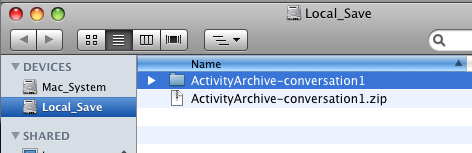
Copy this folder to the LC_Server drive.
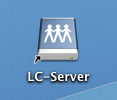
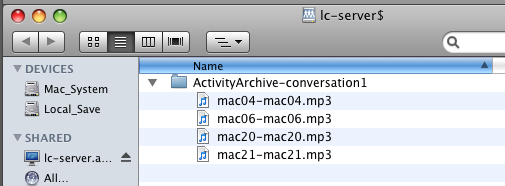
Your students can copy their individual recordings to a flash drive or to their Netfiles accounts. Keep in mind that with this process, any student could listen to another student's recording. So, if privacy is a concern, you'll want to avoid using the LC_Server as a means for sharing because it is viewable from all computers in the Language Center. Instead, you could email files to individual students, or use Netfiles to securely share student audio recordings.
First log-in to the DiLL website at https://lcdill.cla.umn.edu/ and find the recordings you'd like to share under Recording-Only Activities or Synchronized Activities.
Click on Archive Task to ZIP, at the top of the screen.
Then, name your file using one of the options from the pull-down menu (shortname.mp3, last name.mp3, etc). This names each .mp3 file according to each student log-in name.
Type in a name for the Activity so that it is easier to find it after it downloads.
Type in your email address in the email field; a link to the zip file will be sent to your email address.
Click Create ZIP Archive.
Wait for the files to process. A weblink will appear with a ZIP file containing all of your students' recordings.
Click on this link to download the files to your computer. In the Mac classrooms, the ZIP file will automatically download to the Local_Save drive.
Open the Local_Save drive and double click on the ZIP file to unzip the files. A new folder will appear with all of your students' .mp3 files.
Copy this folder to the LC_Server drive.
Your students can copy their individual recordings to a flash drive or to their Netfiles accounts. Keep in mind that with this process, any student could listen to another student's recording. So, if privacy is a concern, you'll want to avoid using the LC_Server as a means for sharing because it is viewable from all computers in the Language Center. Instead, you could email files to individual students, or use Netfiles to securely share student audio recordings.
Wednesday, August 26, 2009
Summer brings upgrades to Jones 10 Classroom!
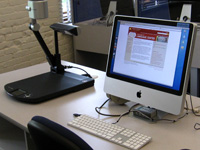 During the months of June and July, the Language Center technical staff has been busy upgrading the LC classroom, Jones 10. The old ASC language lab hardware and PC computers have been torn out and replaced with new iMac computers with the capability of using the Mac DiLL language lab software.
A new 16 x 9 aspect ratio lcd projector has been installed, along with a new keypad to control the projector and select inputs -- computer, multi-zone DVD, multi-standard VCR or document camera. Oh yes, a new document camera has been installed to replace the old overhead projector. Another feature is a handy pocket on the instructor's desk making for easy connection of a personal laptop.
With the conversion of Jones 10, the Language Center now has three classrooms that make use of the Mac DiLL language lab software. Wimba activities can also be scheduled in these three classrooms. Although the computers in these three classrooms are Macs, they all have Parallels installed which allows for simultaneous use of a Windows operating system. (We're still at old reliable Windows XP.)
The Language Center also has a laptop lab cart of 25 Dell laptops which can be reserved and used in Jones 35 Media Classroom. For more information or assistance with the Jones classrooms please contact our Classroom Coordinator, Alyssa Ruesch.
Subscribe to:
Posts (Atom)